
Add a Letsmesh Observer
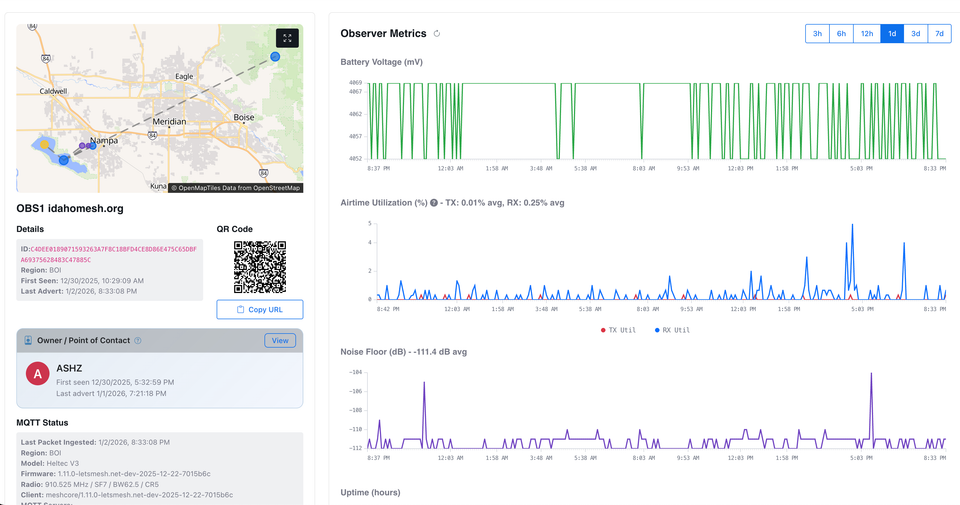
The Letsmesh map (https://analyzer.letsmesh.net/map) is an excellent resource for real-time mesh monitoring, helping diagnose issues and plan future rollouts. It works by having people run observer nodes, which feed public data into the map.
I'm running an observer in Nampa, which puts most of the Treasure Valley on the letsmesh map, but I'd love to see other areas of the state that are starting to develop meshcore networks run observers so they show up on the map as well.
Adding an observer
You can add an observer by visiting the Letsmesh add an observer page. You can add via a repeater, room server, or companion. The only requirement is that the node needs Wi-Fi access to push data to Letsmesh, so it's best for a node with reliable power. My own observer node is a Heltec V4 sitting on a shelf; it doesn't need a great location, as it will hear everything via the repeater on my roof.
Personally, I think the easiest way to run an observer is to flash the Letsmesh repeater firmware. I'll include instructions below. You can also turn off the repeater function if the node doesn't need to be a repeater.
Flashing the Observer Firmware
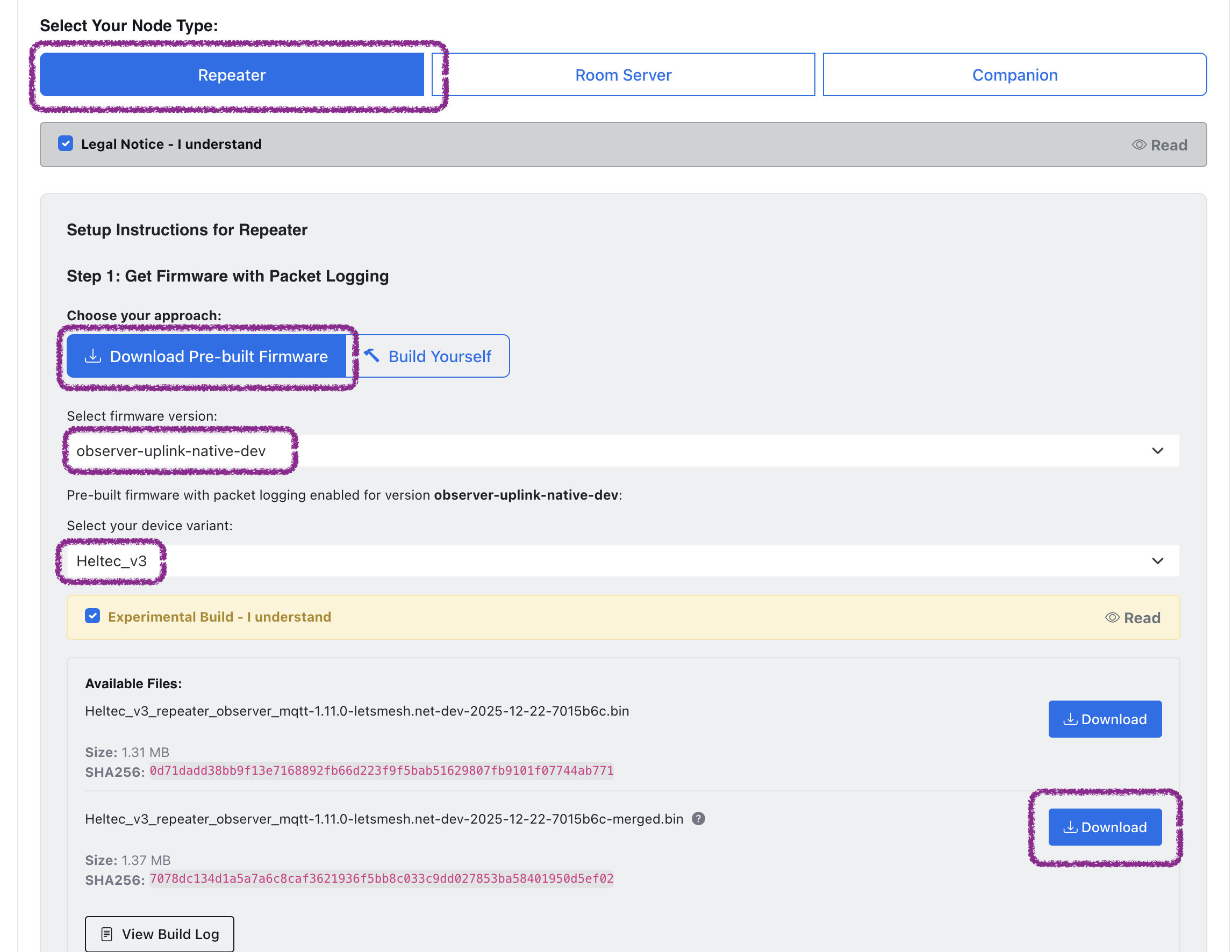
Start by visiting the letsmesh onboard page, select "repeater" and "Download pre-built firmware." In the Firmware version dropdown, select the "observer-uplink-native-dev" firmware; it is the standard meshcore repeater firmware, but it adds Wi-Fi support and the code required for letsmesh uploads.
Once those are selected, pick the device from the dropdown. I'm using a Heltec V3, but several common boards are supported. It will ask you to acknowledge that this firmware is experimental, check the box, and it'll give you download links.
Flash Observer Firmware
The flashing process is the same as usual, except that you will select "custom firmware" in the MeshCore web flasher and choose the firmware you just downloaded.
Configure Observer
At this point, you configure the repeater/observer as you usually would. Connect to it, give it a name, and set a password. Once the basic configuration is complete, you'll need to open the console and run a few additional commands to set up the Wi-Fi and uplink.
Wifi
Start by configuring the wifi connection
set wifi.ssid your_network_name
set wifi.pwd your_wifi_password
Region
Next, you need to tell letsmesh which region you are in. You do this by setting a valid IATA airport code. If you're anywhere in/near Southwest Idaho, you'll choose BOI; otherwise, look at the list below and choose the most appropriate IATA region.
Region Codes
| Code | Coverage Area |
|---|---|
| BOI | Treasure Valley / Southwest Idaho |
| GEG | North Idaho / Panhandle |
| IDA | Eastern Idaho |
| LWS | Lewis-Clark Valley |
| SMN | Central Mountains |
| SUN | Wood River Valley |
| TWF | Magic Valley |
Run the command to set your region
set mqtt.iata BOI
And... that's it. That's all of the required configuration.
Repeater mode?
If you don't need this node to act as a repeater, I'd suggest disabling the repeater functionality by running the following command.
set repeat off
Optional Config
If you want to link your observer to your account on letsmesh, you'll want to give it your email address, the same one you use to log into letsmesh. I do suggest doing this so your observer details and stats appear in your letsmesh dashboard.
set mqtt.email your_email_addressAnd finally, you can have your observer on the letsmesh site show who owns it by linking it to your companion node using your companion node's public key. Grab your companion node's public key and set it with this command. This is entirely optional.
set mqtt.owner your_companion_node_public_keyReboot
You're done! Now you just need to reboot the node, and it should start reporting data to Letsmesh. It will take a few minutes to show up on the letsmesh map. And, if you added your email to the node config, you can see your observer node showing up in "My Nodes" under your account icon in the top right of the page.
Join our Idaho Mesh Discord